 Yaroslav Shmarov
· Published
· Last updated
How to report anonymously through a whistleblowing channel #
This guide follows one report from start to finish in a whistleblowing channel that runs on EthicsPortal. You need the link your organization shared and something to write on. You do not create an account or give an email address.
The numbers in each screenshot match the numbered points under that step.
Before you start #
- Use a personal device, not one your employer provided, and not the work Wi-Fi. The whistleblowing channel cannot hide your activity from your employer’s network monitoring.
- Open the link in a private window, or in the Tor Browser.
- Before you attach files, remove anything that could identify you or another person.
Step 1: Open the link your organization shared #
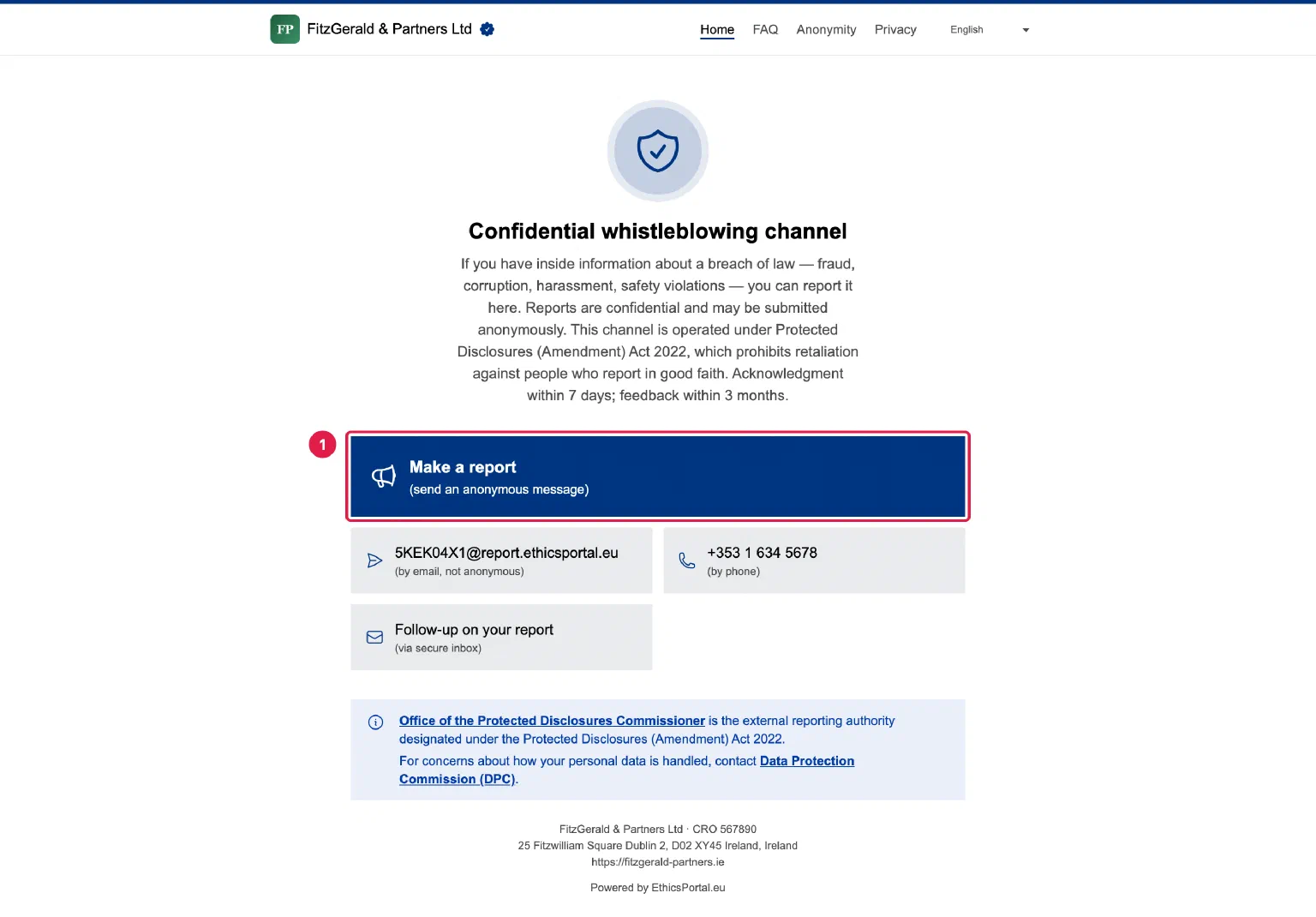
Organizations share the link by email, on the intranet, or as a QR code on a poster. The page names the organization and the law that protects you.
- Select Make a report.
If the page shows an email address or a phone number, you can also report by email or by phone. Email is not anonymous: your mail provider keeps a copy, and so does your employer’s mail system if you write from a work account.
Step 2: Write the report #
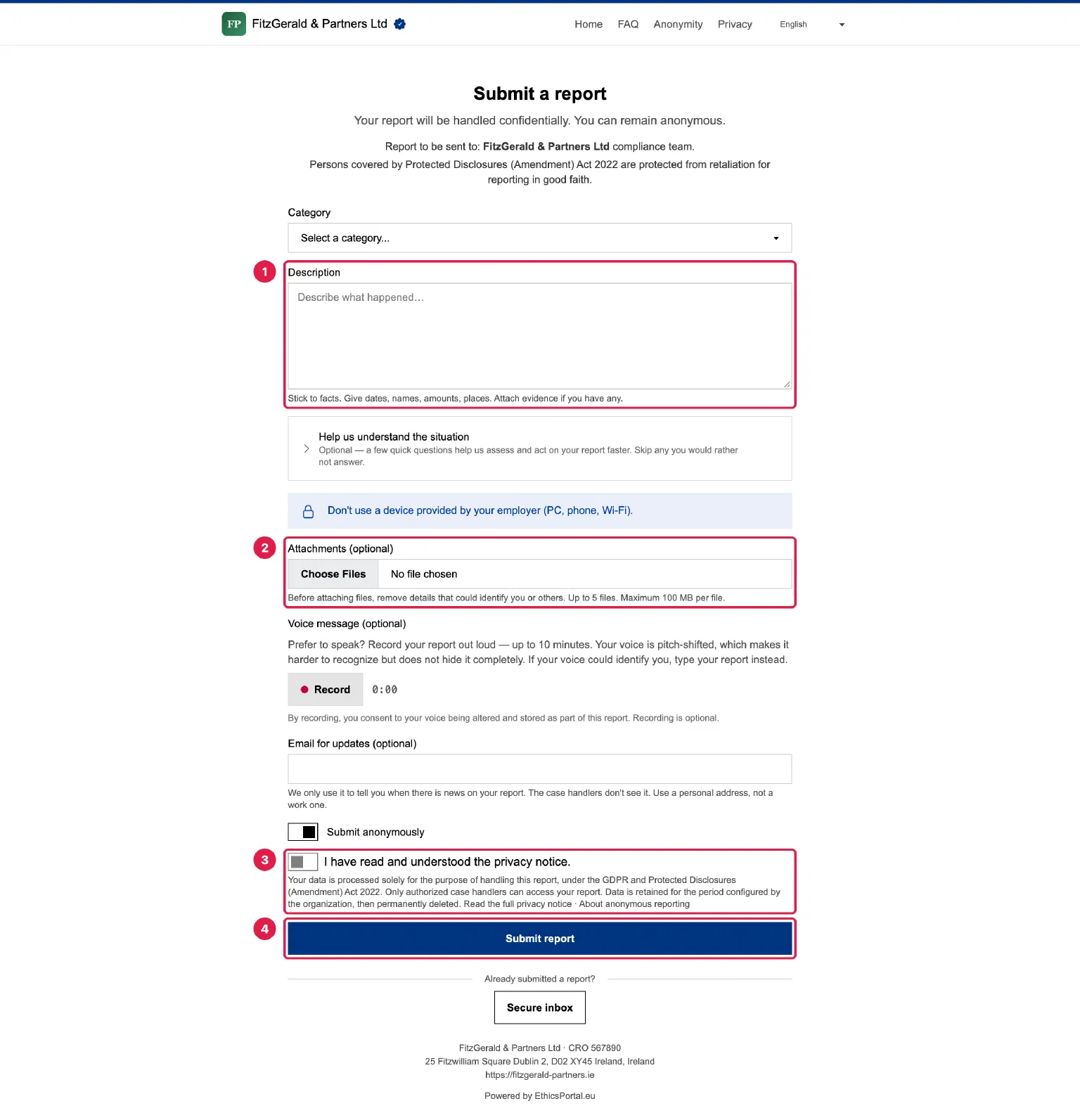
While Submit anonymously stays on, the form asks for no name or phone number.
- Description. Say what happened. Give dates, names, amounts and places.
- Attachments. Optional. PDFs, photos, audio or video, up to 5 files.
- Privacy notice. Confirm that you have read it.
- Submit report.
Email for updates is optional. If you give one, you get an email when there is news on your report, and nothing else. The case handlers do not see the address. Use a personal address, not a work one.
Prefer to speak? You can also record a voice message of up to 10 minutes. Your voice is automatically pitch-shifted, which makes it harder to recognize but does not hide it completely. If your voice could identify you, type instead.
Step 3: Save your Case ID and password #
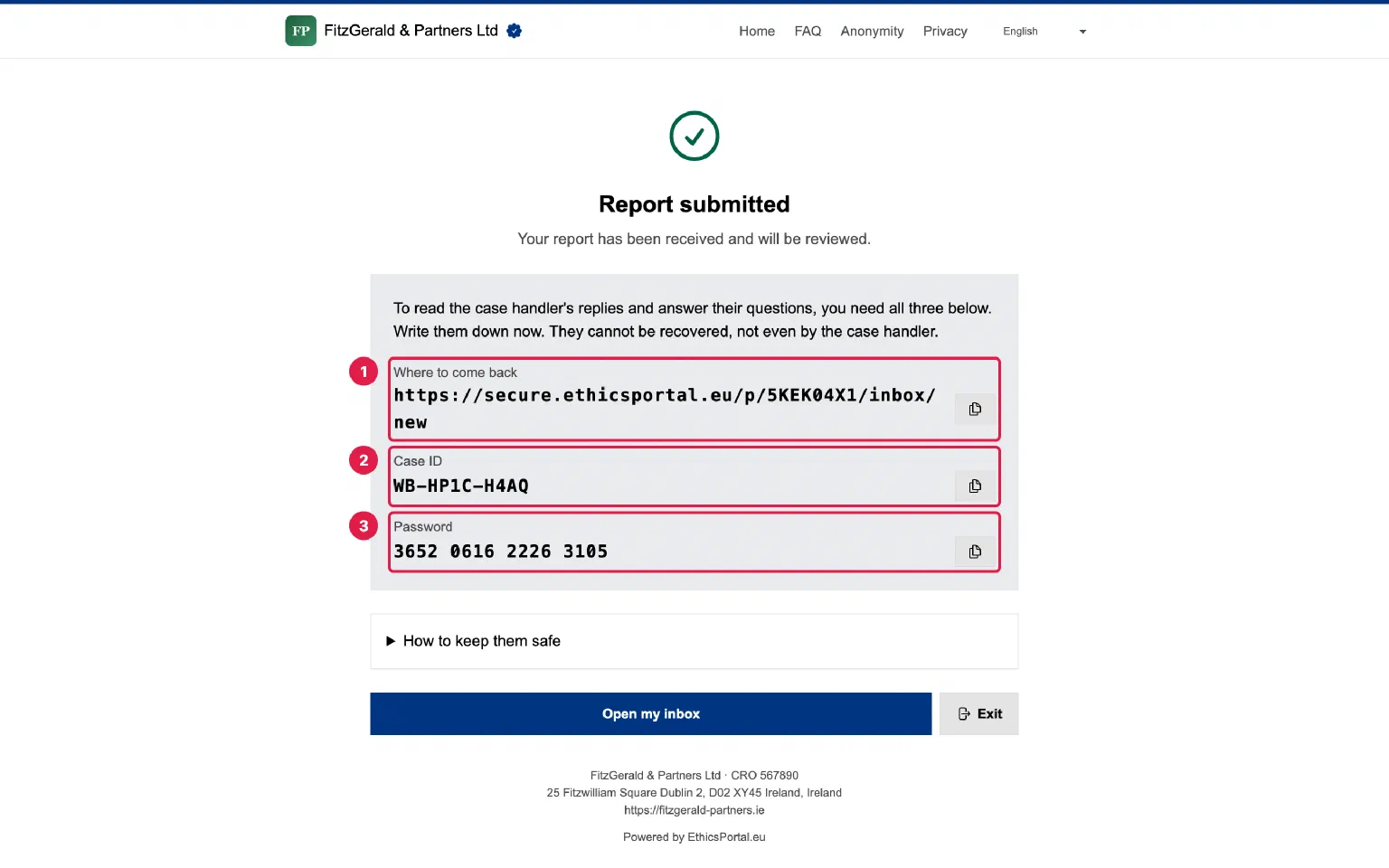
The next page shows three things. You need all three to read the case handler’s replies.
- Where to come back. The address of the secure inbox.
- Case ID. In the form WB-XXXX-XXXX. It identifies your case.
- Password. 16 digits, generated by the system. You do not choose it.
Write them down now. Nobody can recover or reset the password: not the case handler, and not EthicsPortal. Keep them on paper away from your workplace, or in a password manager on a personal device. Never on a work computer or in work email.
This page stays available on this browser until you select Exit, or until 30 minutes pass without activity.
Step 4: Come back and sign in #
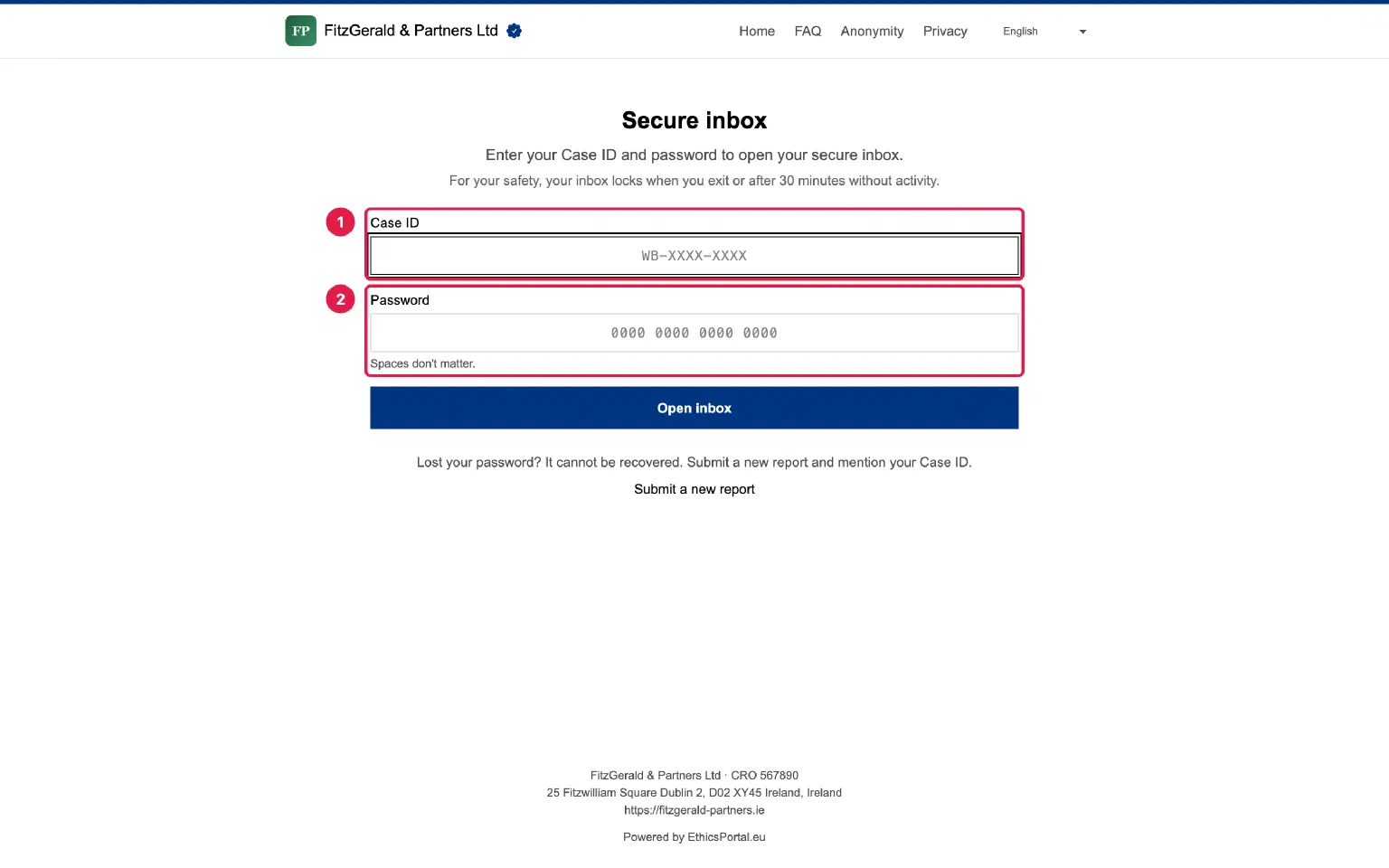
Open the address from step 3, or select Follow-up on your report on the home page of the whistleblowing channel.
- Case ID.
- Password. Pasting works, and spaces are ignored.
Then select Open inbox.
If you lose the password, submit a new report and mention your Case ID.
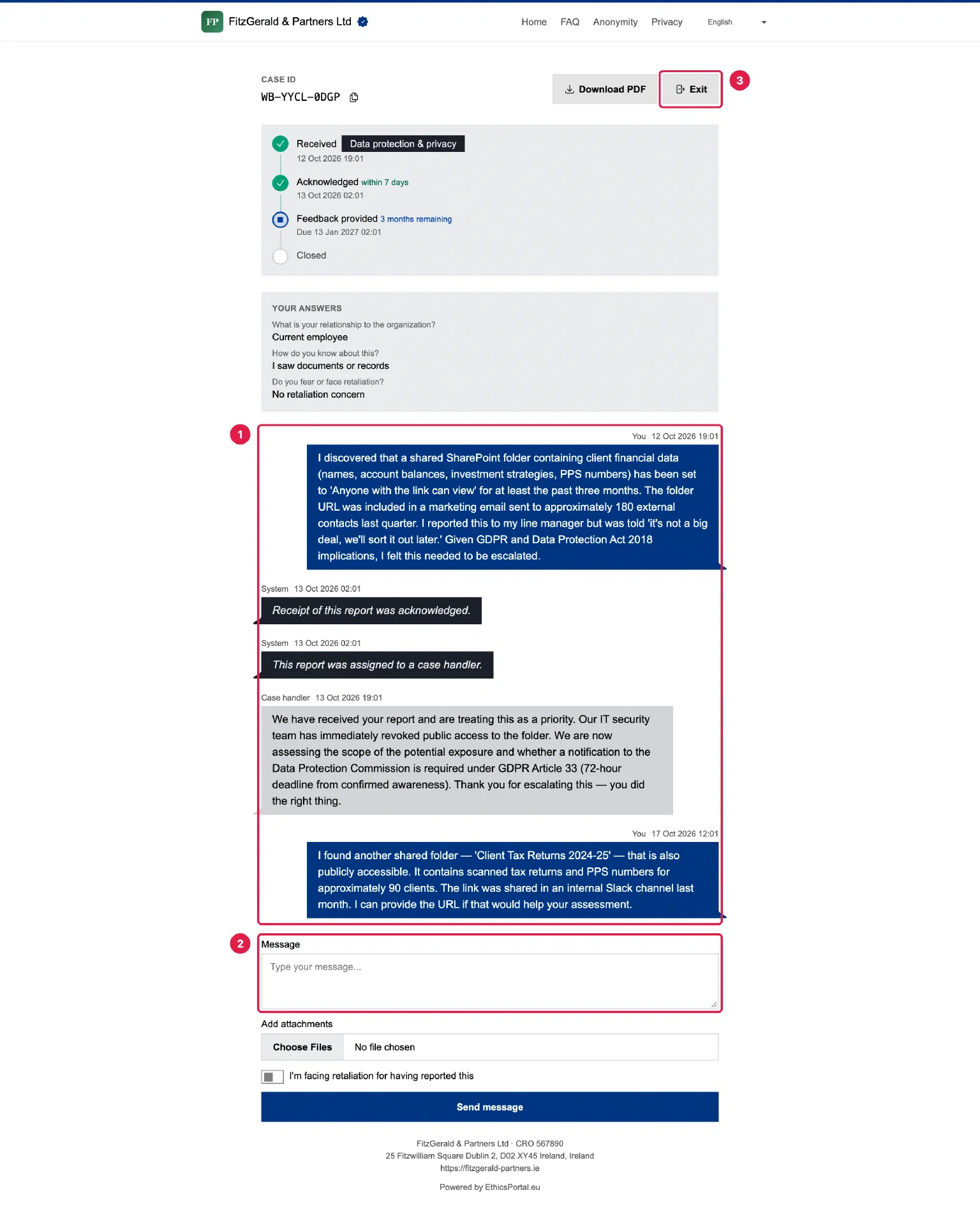
Step 5: Read replies and answer #
- Messages. Your report, the case handler’s replies and status updates, oldest first.
- Message. Write your answer. You can attach more files, then select Send message.
- Exit. Locks the inbox at once.
If you face retaliation for having reported, switch on I’m facing retaliation for having reported this before you send.
The inbox also locks after 30 minutes without activity. If you gave an email for updates, you get an email when the case handler writes. If not, nothing tells you that a reply has arrived, so sign in again from time to time.
What happens next #
Under EU Directive 2019/1937, the organization must acknowledge your report within 7 days and give you feedback within 3 months of the acknowledgment. The timeline at the top of your case shows each stage: Received, Acknowledged, Feedback provided, Closed.
For organizations #
Already operating EthicsPortal? Send this page to your staff together with the link to your whistleblowing channel. How the Case ID and password are protected is set out on the security page.